RXT Mobility – Frequently Asked Questions
New Client?
-
Welcome to RXT Mobility. New clients don’t need to create an account manually — your profile is created automatically the first time you submit a reservation request through our online booking form.
Once your profile is created, you’ll receive an email that allows you to set your password and access your client portal. Inside your portal, you can:
view upcoming and past reservations
update your contact information
securely add or update your credit card
request future rides more quickly
-
Your RXT Mobility client account is created automatically the first time you submit a Booking Request through our online reservation form.
Here’s how it works:
Click Booking Request
Complete the reservation request form with your trip details and contact information.
Submit the form — this automatically creates your client profile in our system.
After your request is received, you’ll receive an email inviting you to set your password.
Once your password is created, you can log in anytime to manage your profile, view trips, and securely add payment information.
If you do not receive the password‑setup email within a few minutes, check your spam folder or contact us for assistance.
After your account is active, future reservations are much faster — your information is already saved, and you can simply log in and submit new trip requests.
Creating Your Account - Alternate Method:
Click Booking Request button
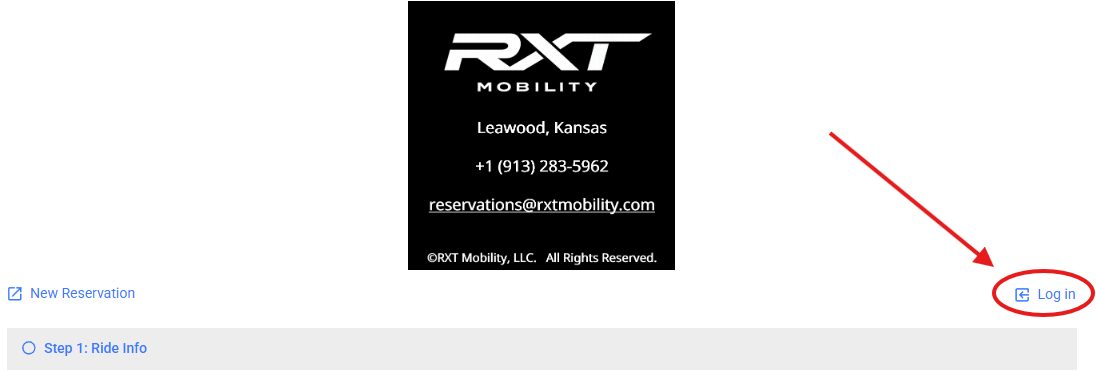
Click the blue “Log in” link
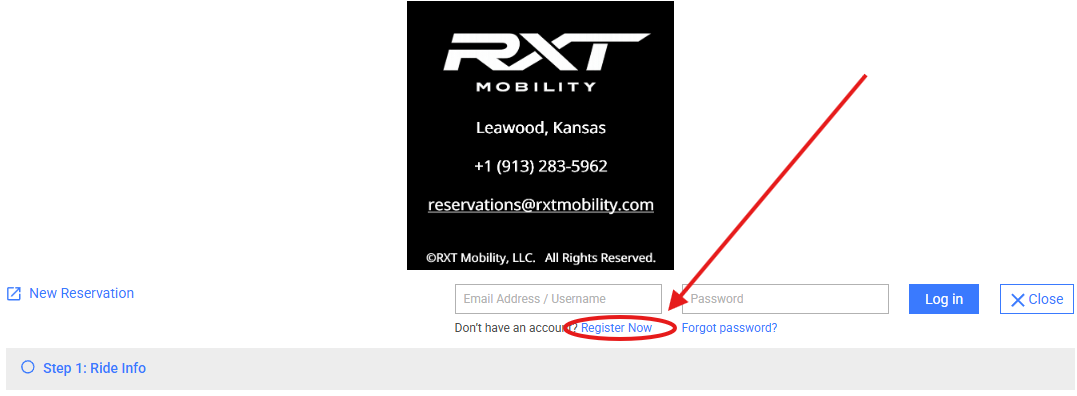
Click the blue “Register Now” link
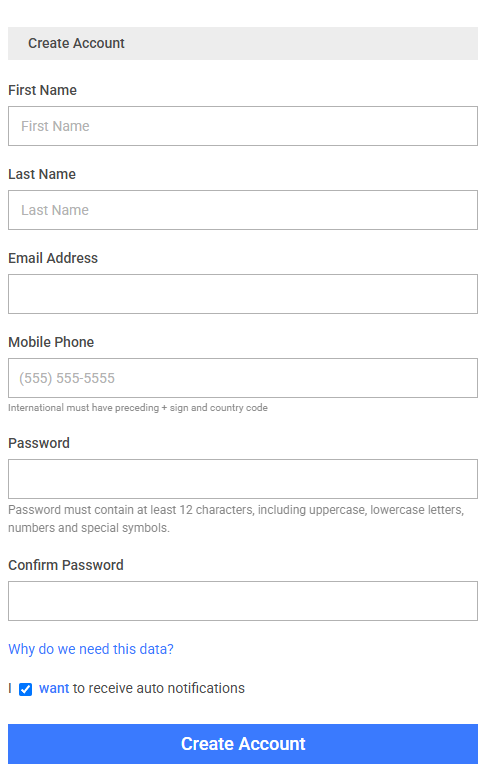
You will be taken to the Registration page. Fill in all required fields.
-
After you submit your first Booking Request, our system automatically creates your client profile. Once your profile is created, you’ll receive an email inviting you to set your password.
Here’s how to set your password:
After submitting your Booking Request, check your email inbox for a message titled “Set Your Password” or “Create Your Client Login.”
Open the email and click the secure link provided.
You’ll be taken to the password‑creation page.
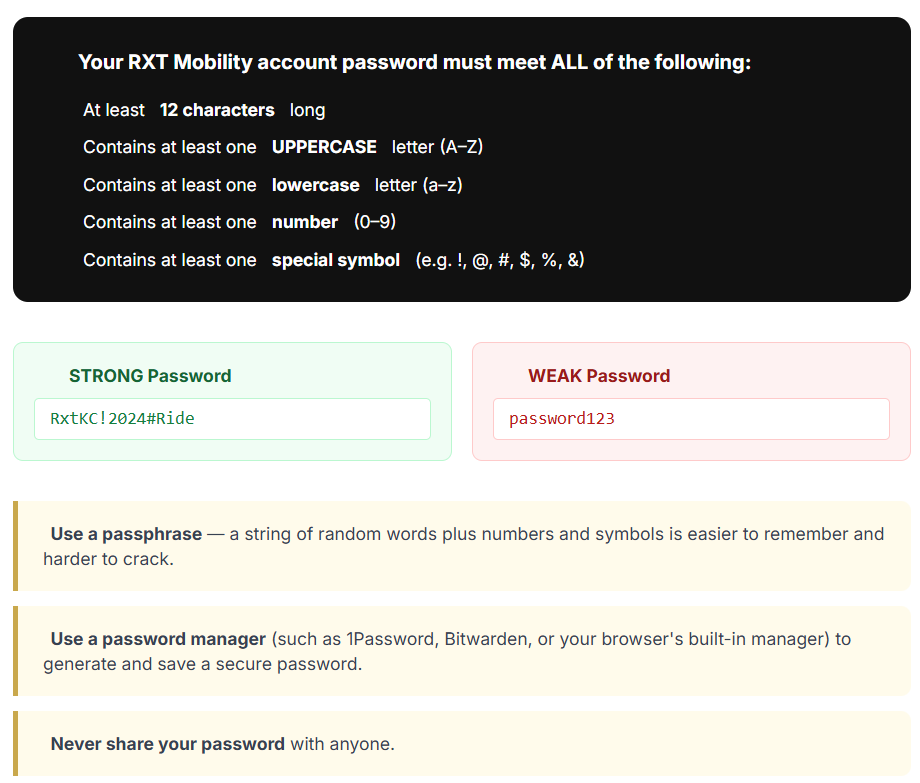
Choose a password that meets the security requirements and confirm it.
Once your password is saved, your client login is active and you can sign in anytime.
If you do not receive the password‑setup email within a few minutes, please check your spam or junk folder. If it still hasn’t arrived, contact us and we’ll resend the link.
After your password is set, you can log in to:
update your contact information
add or update your credit card
view upcoming and past reservations
submit future Booking Requests more quickly
-
Once your client account is active and you’ve set your password, you can securely add your credit card to your profile. RXT Mobility uses encrypted, PCI‑compliant processing through our reservation system, and your card can only be used for confirmed trips.
Here’s how to add your card:
Log in to your client portal using the password you created.
Navigate to the Payment Information or Billing section of your profile.
Select Add New Card.
Enter your card details exactly as they appear on the card.
Save your card — it will be stored securely for future reservations.
Your card is not charged automatically. Charges only occur after a confirmed trip or when a cancellation policy applies.
Adding your card in advance makes future Booking Requests faster and ensures a smooth experience for airport transfers, early‑morning pickups, and executive travel.
If you ever need to update or replace your card, you can return to the same section and select Edit or Remove.
-
Once your client account is active and your password is set, you can manage all future reservations directly through your client portal. This makes scheduling faster, keeps your information up to date, and ensures a smooth experience for airport transfers, early‑morning pickups, and executive travel.
Here’s what you can do inside your client portal:
1. Submit new Booking Requests quickly Your contact information and payment details are already saved, so future Booking Requests take only a few moments to complete.
2. View upcoming reservations See all confirmed trips, including pickup times, locations, vehicle type, and driver assignment.
3. Review past trips Access your ride history for reference, reimbursement, or travel documentation.
4. Update your profile information You can update your phone number, email address, or billing details at any time.
5. Manage your saved credit card Add, update, or remove your payment method as needed.
If you ever need assistance with a reservation or have questions about your account, you can contact RXT Mobility directly and we’ll be glad to help.
-
Your card is not charged at time of booking. RXT Mobility processes payment after your ride is completed. You will receive payment receipt via email.
-
Log in to your account at the booking portal. Navigate to your upcoming reservations. From there you can modify trip details or request a cancellation. For urgent changes, call us at +1 (913) 282-5962 or email reservations@rxtmobility.com.
General Questions
-
No - you can book as a guest. However, creating a free account lets you save your information, view past trips, access invoices, and enjoy faster checkout on very future trip.
-
We offer the following service types:
Executive Chauffeur
Airport Transfer
Point-To-Point
Hourly
Rideshare Elevated
Standard (STD)
Airport Transfer
Point-To-Point
Hourly
XL
Airport Transfer
Point-To-Point
Hourly
-
Yes. You sure can. Hourly Service is ideal for events where timing is flexible or where you may need the driver to remain on standby.
When you submit your Booking Request, simply choose Hourly Service and enter the start time, pickup location, and any details about the event. We’ll confirm provide a personalized Quote. If the Quote is agreeable, we’ll convert the quote to a Confirmed Reservation.
-
Check your spam/junk folder first. If you don’t see it, email us at support@rxtmobility.com call +1 (913) 283-5962.
-
Absolutely. Our booking portal is powered by Limo Anywhere, a PCI DSS-compliant platform. All data is transmitted using SSL encryption. RXT Mobility never stores your full credit card number on our servers.
-
Please review our MCI Airport Pickup Guide for additional information and map.
-
Monday - Friday (4:30 AM - 8:00 AM and 6:00 PM - Midnight)
Saturday - Sunday (Flexible scheduling available. Contact us to discuss weekend arrangements)
-
Submit your question using our Question Template,
Call or text us at +1 (913) 283-5962,
Or use one of our email addresses based on your need or inquiry to reach the correct area:
info@rxtmobility.com (general questions),
support@rxtmobility.com (website, bookings portal questions),
customerservice@rxtmobility.com (personnel feedback)
3. Click the blue “Register Now” link
4. You will be taken to the Registration page. Fill in all required fields: